Step 1: Install DevThrottle and connect a gateway
4 min read
About ten minutes, and this is the only boring step. You need a Windows PC, a free DevThrottle account, and nothing else - no keys, no runtimes, no card. On a Mac, the install is one pasted command and the install page has it; come back here afterwards.
One thing is worth knowing before you start, because it is what makes people hesitate. You create the account once, here at the beginning, and that is the only time you are asked for it. The installer itself never asks who you are, and when the app signs you in later it is with the account you already have - not a second one.
This step gets DevThrottle onto your machine and connected. It teaches you nothing about using it - that is step 2, and it starts the moment you finish here.
Already have a coding agent running? Hand it the job. Two commands at a command line install DevThrottle with no window at all, and the install page has the exact prompt to paste - hash-checked against the release manifest. Most people reading this already have an agent open, and it is the faster route by a wide margin.
Rather watch someone do it? Each way in is filmed end to end on a clean Windows machine: the installer and the setup wizard (6:19 - the walk on this page), handing it to a coding agent you already run (1:47), or two commands at a command line (1:57).
Create your account, then take the installer
Sign up for a free DevThrottle account - email only, no card - and the Windows installer is yours to download. It is a plain file; nothing about it is locked to you.
On day 15 nothing you installed stops. Only the parts we host switch off, and nothing is charged.
TipIf the download stops just short of finishing, your browser is holding it for confirmation - a brand-new release file always earns that. Open your downloads list and click Keep; the file has already arrived, so it completes at once. The install page walks that recovery click by click.
Run it, and decide nothing
Run the file. The rail down the side shows the whole path - Welcome, Install, Complete - and there is not one decision on it. No install type, no key, no account: the Welcome screen says so in as many words, "No account is needed to install it." It needs no administrator rights and writes nothing outside your own user profile.
On the last screen, choose Open Director.
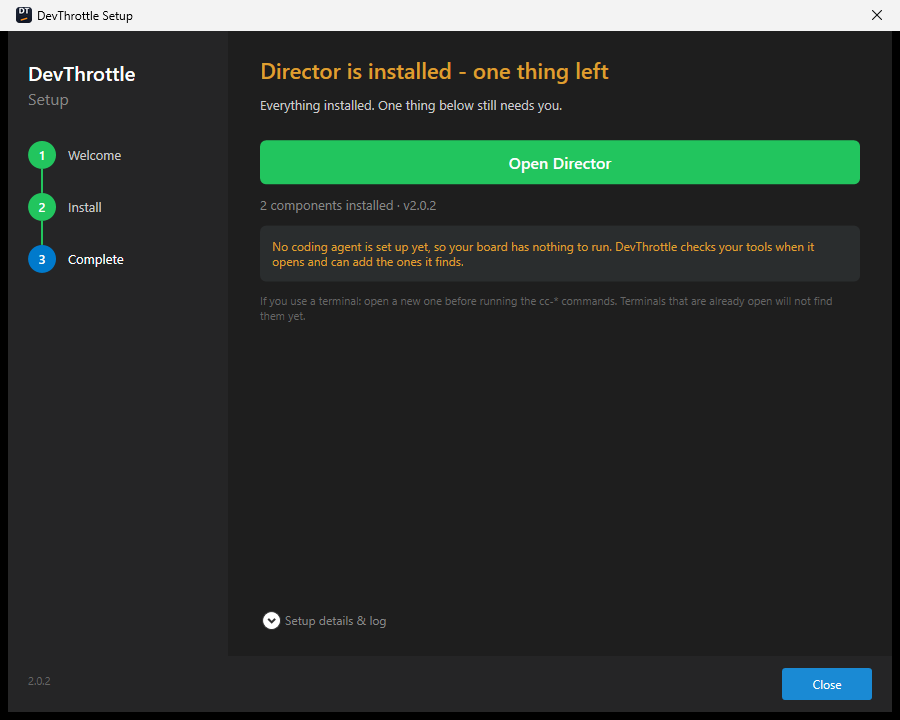
The installer's last screen. Open Director is the way on - and it tells you now that no coding agent is set up yet, which is the job the next screens pick up. Say yes to the setup that opens
The first time DevThrottle opens, a second wizard starts - a different thing from the installer you just ran. The installer put files on the machine; this one sets the machine up. It reads Step 1 of 8 beside its progress dots, and it promises underneath that it takes about three minutes, that every step is optional, and that everything can be changed later in Settings. Click Set me up.
That promise holds with one exception, and it is the one a brand-new machine runs into: on the agents step, if there is no coding agent on the machine at all, the button that moves you on stays greyed out. It is not a trap - the way past is on that same screen, and you will see it below.
(Skip setup and figure it out myself is beside it and is perfectly safe, but the rest of this page assumes you stayed.)
Step 2 of 8: connect a gateway
This is the screen this step exists for. A gateway is what makes DevThrottle reachable beyond this one computer - your sessions on your phone, voice, and the morning report all come through it. Three cards, and the choice is honestly yours:
Hosted gateway is marked RECOMMENDED and is already selected. DevThrottle runs it, you sign in, and this machine is enrolled. The card states the terms in full: included with Pro, and with the 14-day Pro trial that new accounts get when they first connect here, with no credit card. Self-hosted gateway means you run your own, which is an advanced setup rather than a first install. Not now is local-only on this machine, and you can connect any time from Settings.
Not now is a real answer. The Director, its sessions and your coding agents all work without a gateway. What you give up is the remote half - no sessions on your phone, no voice, no morning report - and one thing on this machine too: the
cc-devthrottlecommand line, which agents use to list, message and start sessions, only talks through a gateway. No gateway means no agent tooling, and that is a designed trade rather than an accident.Sign in and connect
Keep the hosted card and click Sign in and connect. Your browser opens and the wizard waits - it says so on screen: "We opened your browser to sign you in with Google, GitHub, or email. This window continues automatically when you are done." There is a Cancel sign-in link if you change your mind mid-flight.
In the browser, Continue with Google or Continue with GitHub is one click if you are already signed in there. The email form below them opens on its Email + Password tab; its second tab, Magic Link, emails you a sign-in link instead - no password, but a trip to your inbox, which on a fresh machine means a trip to another device.
When it completes, the wizard is already showing Connected, with the line "This machine is enrolled with" and the gateway it joined. If the sign-in does not complete, the step says so and leaves your options where they were; it never carries on as though it had worked.
Let it finish, and you are out
The remaining steps are about this computer, and on most of them the wizard does the work itself - it looks for its own tools, your repositories and your screenshots folder, and moving on costs you nothing. Two of them are different, because on those two the button that moves you on does something.
Your agents is the first, and it is the step that holds you. On a machine with no coding agent it says so and offers Install Claude Code for me, which is the fastest way from nothing to a working setup. Re-check rescans after you install one yourself, and I'll do this later is the honest way past - it moves you on and carries the job forward instead of pretending it is done. Until you take one of those three the button beside them stays greyed out: DevThrottle cannot run a coding agent it does not have, and it would rather say so than let you finish a setup that cannot work.
Let your agents use a browser is the second, and it recommends rather than asks. Its button reads Set up my browser and pressing it starts that job rather than skipping it. The way past is the quiet link underneath - Set up browsers later - I want to get going - and the screen is straight with you that doing it now is easier than wiring it up later.
The last screen reads You are ready and shows a receipt of what was actually set up. That is the proof, and you do not need a terminal to confirm any of it.
The installer window itself never asks who you are. You signed in on our website to get the file, and the app signs you in at its gateway step - but in between, from double-clicking the file to the Director opening, the installer has no sign-in to show and never will. So if that window asks you to sign in, or for a licence key, or for a payment, it is not ours: close it and fetch the file again from your account. Inside the app, the gateway step above is the one legitimate sign-in, and Not now sits right beside it.
Nothing here is final. Skipped the gateway? Settings connects it later. No coding agent yet? DevThrottle looks for agents every time it opens, so installing one later needs no reinstall.
Installing on a Mac, or from a script? Those routes are on the install page - the Mac command, the headless installer with no window at all, and the hash check that goes with it. The agent route is there too, with the prompt to paste.
Next: step 2
DevThrottle is installed and, if you took the hosted card, connected. That is the boring part done, and everything from here is the actual product.
Step 2 is where the real work starts: you point a coding agent at your own code, give it a first instruction, and watch it work. If the setup found a coding agent on this machine, the last screen offers Start my first agent and takes you straight there. If you took I'll do this later on the agents step, that same button reads Install an agent instead and sends you back to fetch one first - the wizard will not promise a session it cannot start.
Step 2 is Start your first session.
Curious what the gateway is doing on your behalf now that you are connected? The Gateway overview explains it, and it can wait.