Answer an agent in thirty seconds
4 min read
An agent has stopped and is waiting on you, and you are in a supermarket. The work is done in thirty seconds if you can see the question - and sits idle for two hours if you cannot.
This is the short interaction, the one you will do most often. You need your phone already paired; if it is not, do that first, because you cannot set it up from the aisle.
Open DevThrottle on your phone
In the session list, anything waiting on you sits under a red Needs you heading, longest-waiting first, above the other sessions. No Needs you section means nothing is waiting - with one caveat: a machine or repository filter you applied earlier sticks on the phone and can hide waiting sessions. If a strip under the title bar names a filter, tap Clear before trusting an empty list; if there is no strip, you can put the phone away.
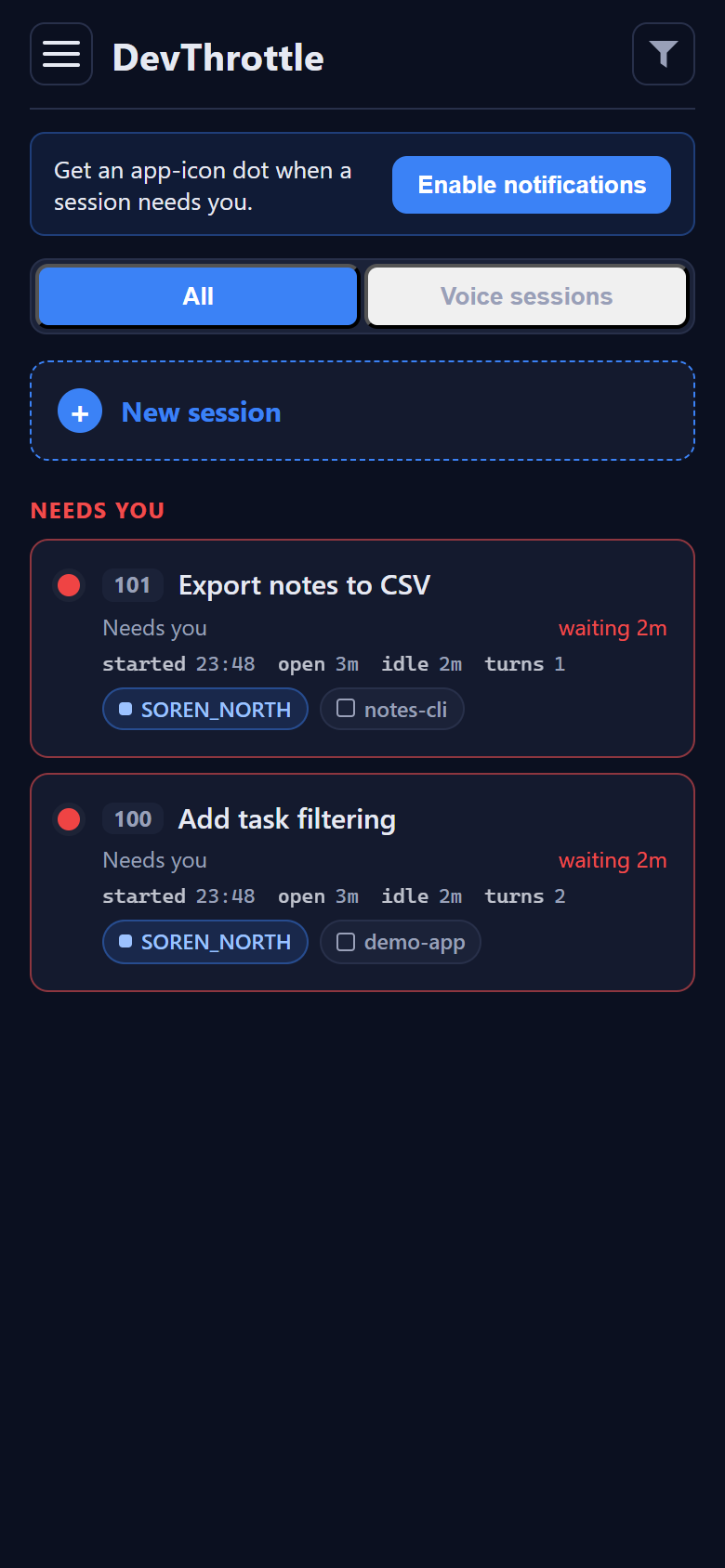
The DevThrottle phone roster with a red Needs you section listing two waiting sessions - Export notes to CSV in the notes-cli repository and Add task filtering in demo-app - each showing how long it has been waiting, when it started, its idle time and turn count Each card tells you how long it has been waiting, which repository it is in, and how many turns it has taken. The waiting time is the one to read: it is how much of your day this agent has already lost.
Open the one that is waiting
Tap the card. You get the conversation, ending with whatever the agent last said - which, when it is waiting on you, is the question. Read that and nothing else. You are not here to review the work. One exception: a session in voice mode opens on its Voice screen instead, ready to speak its update aloud - that is working by voice on a walk, and its own tutorial covers it.
Answer it
Type your answer and send. Short is fine - "yes", "do the second one", "leave that alone for now". The agent picks up where it stopped.
If it is easier to say than to type, tap Speak instead of the keyboard: talk, tap Pause to see the words and fix any of them, then Insert them into the box or Send them straight to the agent. Standing in a queue, talking is usually faster and less error-prone than thumbs.
Put the phone away
That is the whole loop. Do not stay to watch - the roster refreshes itself every few seconds and will put the session back under Needs you when it wants you again. Check back when it tells you to, not before.
Next
For the phone roster, chat controls and file viewer in detail, see Sessions on your phone. For hours of real work by voice rather than a thirty-second rescue, see A whole session by voice, on a walk.