Your whole fleet in a browser tab
5 min read
You are away from the office with a real keyboard in front of you - a hotel laptop, a client's spare machine, a desktop that is not yours. Your agents are still running at home. This gets you back to all of them in a browser tab, with nothing installed on the machine you are borrowing.
About five minutes. You need DevThrottle already running somewhere with a Gateway, and the sign-in you use for DevThrottle.
Open the Cockpit in any browser
Go to your Gateway's address in a browser and sign in. That is the whole install step - there isn't one. The Cockpit is a web page your Gateway serves, so any machine with a browser can reach it without downloading anything.
One habit worth keeping on a machine that is not yours: open a private browsing window first. Signing in registers the browser as a device on your account, and a private window forgets that the moment it closes - so the enrolment cannot outlive a walk away from the desk you forgot to tidy. It is belt and braces rather than the only way out: the last step signs out properly, and this is what covers you if you never get to it.
Find your sessions
Signing in lands you on the fleet map - the whole fleet as one picture. For working through what is waiting on you, the list is the better tool: click Sessions in the rail on the left.
The session list shows every session in your fleet, listed under the Director that runs it - the heading is that Director's machine name. A machine usually runs one Director, so the sections mostly read as machines; a machine running two Directors shows as two Director sections. Each card shows what the session is doing, how long it has been waiting, and how many files it has changed but not committed.
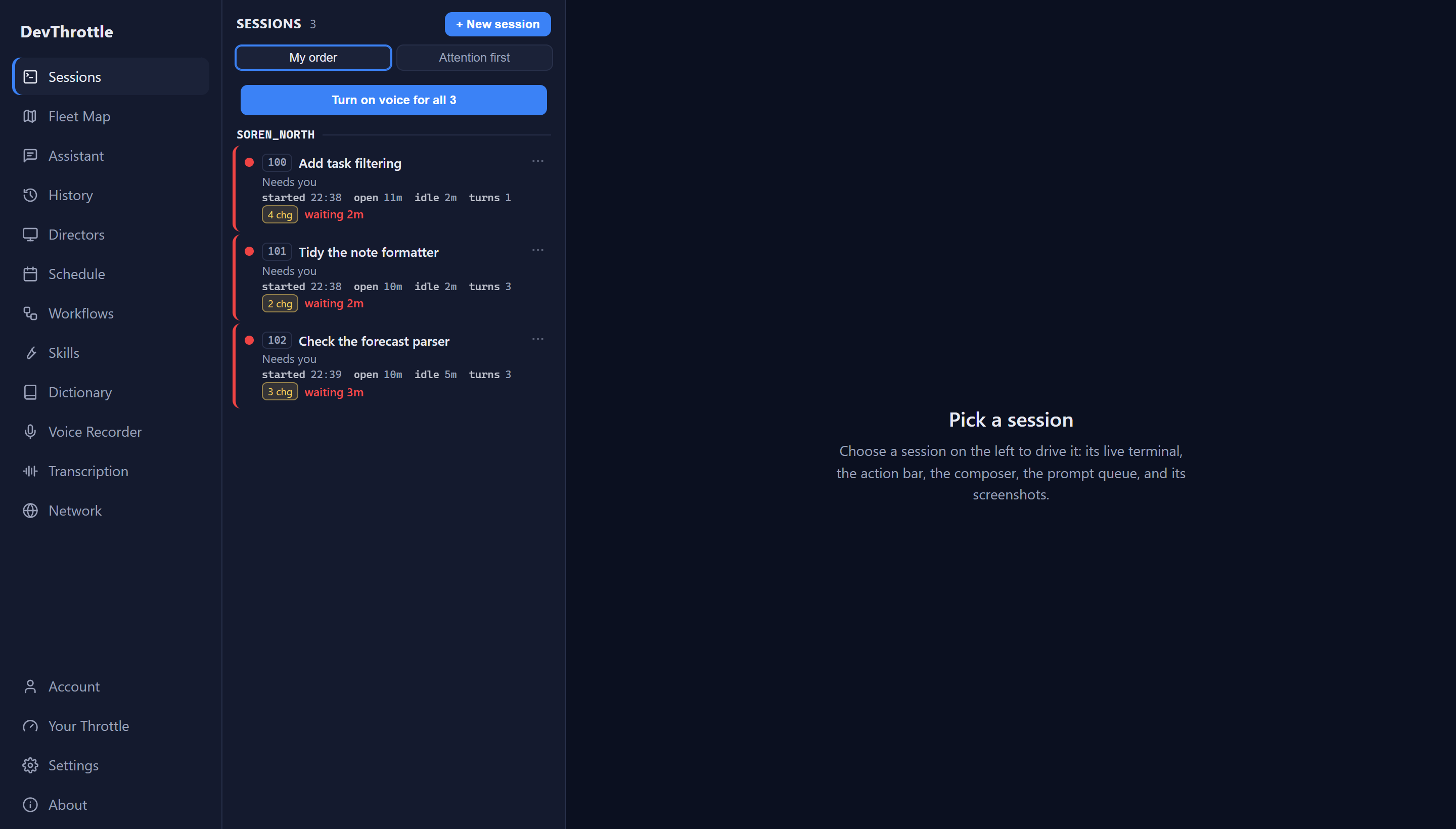
The Cockpit session list showing three sessions on one machine, each marked Needs you with timers, a turn count, and a yellow uncommitted-changes badge Switch the ordering to Attention first and whatever is waiting on you comes to the top. On a borrowed machine, with limited time, that is usually the only ordering you want.
Answer one
Click a session. You get its live terminal, the prompt box, and its queue - enough to read what the agent did, tell it what you want, and move on. Type your answer and send it exactly as you would at your own desk.
Sign out before you hand the machine back
Signing in enrolled that browser as a device on your account, and closing the tab does not undo it. Undo it deliberately: open Account in the rail and look at Signed in on this browser, at the top of the page. With one account it offers Sign out; with several, Sign out of this account and Sign out of all. Each asks first, and the button that commits reads Yes, sign out.
Read what comes back rather than walking away on the click. Sign-out clears the credential on the Gateway before it forgets the key in the browser, and if the Gateway cannot be reached it does neither and says so - nothing is signed out, and you can try again. There is no half-done state to leave behind.
Then finish the job from a machine that is yours. Signing out is this browser forgetting its key; the device itself stays on your account's roster until you remove it there. Open Account, find the borrowed machine under Your devices, and remove it - that is what revokes its access. The Log out button further down that page is not this: it belongs to This Gateway's account, the Gateway's own sign-in, not the browser you borrowed.
Next
For reachability in detail see Answering from another machine and network speed and diagnostics. If you only have your phone rather than a keyboard, read Answer an agent in thirty seconds instead. To see the whole fleet as one picture, see The fleet map.